
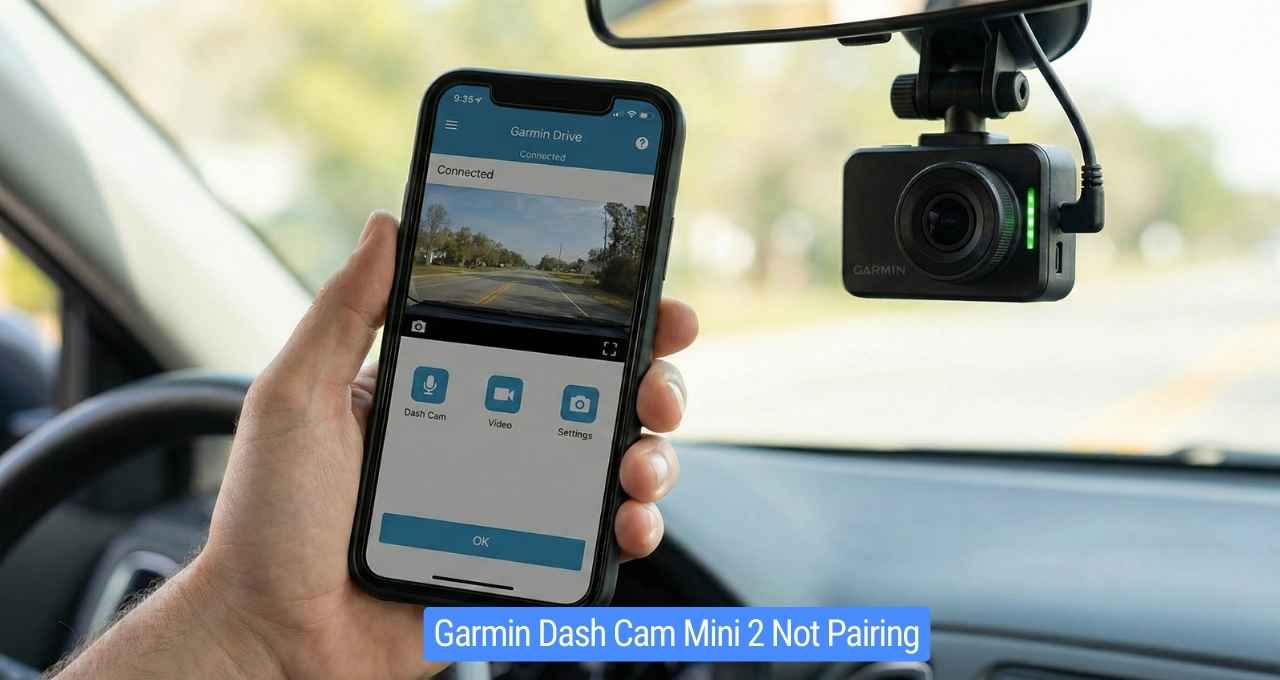
There is nothing worse than sitting in a hot car fighting with a new gadget. I was so excited to set up my new camera, but I hit a wall immediately. My Garmin Dash Cam Mini 2 not pairing with my phone drove me crazy. It felt like my phone and the camera were speaking two totally different languages.
I stared at that blinking blue light for ages. It was like trying to high-five someone in the dark; we just kept missing each other. A friend told me, “I love the video quality, but the Garmin Drive app not connecting makes me want to scream.” I knew exactly how he felt. I realized this wasn’t just bad luck.
I spent the whole afternoon troubleshooting so you don’t have to. I dug into every Garmin Dash Cam Mini 2 bluetooth issue and Wi-Fi glitch to find the root cause. I learned that the fix is often simple, but it isn’t always obvious.
In this guide, I will share the exact steps that got me back online. We will skip the jargon and fix your Garmin Dash Cam Mini 2 setup issues for good.
Ready to get this thing working? Let’s solve it.
What “Not Pairing” Really Means on the Garmin Dash Cam Mini 2
When we say “not pairing,” it feels vague. But in my car, it felt very specific. It meant I was stuck. The camera and phone were acting like strangers.
It usually means the digital handshake failed. Your phone knows the camera is there. The camera knows the phone is there. But they refuse to talk.
The blue light might blink rapidly. Or, the Garmin Drive app not connecting message pops up. It is like knocking on a door that no one opens.
Common Pairing Symptoms I’ve Seen
I have seen this issue manifest in a few weird ways. You might recognize these signs in your own car:
- The invisible camera: The Garmin Drive app searches but finds nothing.
- The Wi-Fi drop: Bluetooth connects fine, but the garmin dash cam mini 2 wifi not working error hits when viewing clips.
- The frozen screen: The app hangs or freezes during the “connecting” phase.
- The endless loop: You see a spinning wheel that never stops.
Why Pairing Is Critical for This Dash Cam
This camera has no screen. That is its best feature, but also its weakness. Without pairing, you are flying blind.
You need the connection to see what the lens sees. It is the only way to download clips after an accident. You also need it to change settings. Without the app, it is just a passive recorder.
Most Common Reasons the Garmin Dash Cam Mini 2 Won’t Pair
Why does this happen? I dug deep to find the root causes. It is rarely a broken camera. Usually, it is a settings conflict.
Understanding the “why” helps fix the “how.” Here are the main culprits I found.
Bluetooth vs Wi-Fi Confusion (Biggest Issue I Noticed)
This was my “aha” moment. The camera uses Bluetooth for setup, but Wi-Fi for video. It needs to switch between them.
A garmin dash cam mini 2 bluetooth issue often isn’t about Bluetooth at all. It is the handoff to Wi-Fi that fails. Your phone tries to hold onto your home Wi-Fi instead of the camera. It gets confused.
App Permissions Blocking the Connection
Smartphones are protective. They block apps from looking around. If you denied “Location” or “Local Network” access, the app is blind.
- Android users: Location must be on. The app needs it to find Wi-Fi signals.
- iPhone users: The “Local Network” toggle is vital. If it is off, the app can’t see the camera.
Outdated Garmin Drive App or Firmware
Old software causes fights. If your app is old but the phone is new, they won’t get along. An update can break the garmin dash cam mini 2 pairing problem wide open.
Phone Compatibility or OS Issues
New phone updates can be buggy. I once updated my iOS, and pairing broke instantly. Older phones might struggle with the specific Wi-Fi frequency. It is rare, but it happens.
Step-by-Step Fixes That Worked for Me
I tried everything. I read forums. I pulled my hair out. Eventually, I found a sequence that works.
Follow these steps in order. Do not skip one. This is how I fixed my garmin dash cam mini 2 setup issues.
Fix #1 – Power Cycle Everything (Simple but Effective)
It sounds cliché. But it works. Computers get stuck in loops. A restart clears the brain.
- Unplug the dash cam.
- Turn off your phone completely.
- Turn off your car ignition.
- Wait 30 seconds.
- Turn everything back on and try again.
Fix #2 – Remove and Re-Add the Dash Cam Correctly
Sometimes the connection is corrupted. You need a clean slate. It is like a bad breakup; you have to cut ties before starting over.
- In the App: Go to settings and select “Remove Device.”
- In Phone Settings: Go to Bluetooth. Find the camera. Tap “Forget This Device.”
- Start Over: Open the app and tap “Add Device” like it is brand new.
Fix #3 – Check App Permissions Manually
This was the fix for my neighbor. He had accidentally hit “Don’t Allow” on a pop-up.
- For iPhone: Go to Settings > Garmin Drive. Turn on Bluetooth, Local Network, and Location.
- For Android: Go to Settings > Apps > Garmin Drive. Ensure Location is set to “Allow only while using the app” (or “Always”).
Fix #4 – Manually Connect to the Dash Cam Wi-Fi
The app usually automates this. If the garmin dash cam mini 2 won’t connect, do it manually.
- Go to your phone’s Wi-Fi settings.
- Look for a network named “Garmin…”
- Tap it. The password is often shown in the app or manual (usually 12345678).
- Once connected, open the app again.
Fix #5 – Reset the Garmin Dash Cam Mini 2
If nothing else works, wipe the camera. This is the nuclear option.
- Hold the button on the side (the microphone button) for 10-12 seconds.
- The light will turn off and then flash.
- This resets settings but does not delete your saved video clips.
- You will have to pair it like a new device.
iPhone vs Android Pairing Issues (What I’ve Noticed)
Not all phones behave the same. I noticed distinct quirks depending on the OS.
Garmin Dash Cam Mini 2 Not Pairing With iPhone
Apple loves privacy. This is great for security but bad for dash cams.
- Local Network: Check this setting first. It is the #1 blocker.
- Private Wi-Fi Address: In Wi-Fi settings, turn off “Private Wi-Fi Address” for the Garmin network. It confuses the camera.
- Background Refresh: Ensure the app can run in the background.
Garmin Dash Cam Mini 2 Not Pairing With Android
Android phones try to save battery. They kill apps that run in the background.
- Smart Network Switch: Turn off “Switch to Mobile Data.” Your phone sees the camera has no internet and disconnects.
- Location Accuracy: Ensure “High Accuracy” is on for location services.
- Battery Saver: Turn off power-saving modes during setup.
When None of the Fixes Work
Sometimes, you do everything right, and it still fails. I have been there. It is defeating.
Signs the Dash Cam Might Be Defective
If you tried all the above, the hardware might be bad. Look for these signs:
- No lights: The unit is dead.
- Extreme heat: It gets too hot to touch instantly.
- No Wi-Fi signal: Your phone never sees the “Garmin” network.
Contacting Garmin Support – What Helped Speed Things Up
I had to call them once. They were actually helpful. To save time, have this ready:
- The serial number (on the box or unit).
- Your phone model and OS version.
- A list of steps you already tried.
- They replaced my unit quickly under warranty.
Tips to Prevent Pairing Issues in the Future
Once it is working, keep it working. I learned these lessons the hard way.
- Update the App: Keep Garmin Drive current.
- Don’t Force Close: Leave the app running in the background if possible.
- Stick to One Phone: Pairing with multiple phones confuses the camera.
- Check the Card: Format your SD card monthly to keep things smooth.
FAQs – Garmin Dash Cam Mini 2 Not Pairing
Why is my Garmin Dash Cam Mini 2 not pairing with my phone?
It is usually a permissions issue. Your phone is blocking the app from seeing the camera via Bluetooth or Local Network.
Does the Garmin Dash Cam Mini 2 use Wi-Fi or Bluetooth?
It uses both. Bluetooth is for the initial handshake and settings. Wi-Fi is used to view live video and download clips.
Can I use the dash cam without the Garmin Drive app?
Yes. It will still record to the SD card when plugged in. You just cannot view footage on your phone or change settings easily.
How do I reset my Garmin Dash Cam Mini 2?
Press and hold the microphone button on the side for about 10 seconds until the light flashes yellow.
Is the Garmin Dash Cam Mini 2 compatible with my phone?
It works with most modern smartphones running recent iOS or Android versions. Very old phones may struggle with the app requirements.
Final Thoughts – What I’d Do Differently Next Time
Fixing my Garmin Dash Cam Mini 2 not pairing was a journey. I was frustrated. I wasted hours.
If I had to do it again, I would check my phone permissions first. That was the hidden culprit. I would also be more patient with the “power cycle” step.
Don’t give up. The camera is great once it works. It is small, discreet, and reliable. Take a breath, follow the steps, and you will get that green light.

Jake Elston
I am Jake Elston, the founder of CarDetailFlow. I have eight years in car work. I hold a post-grad cert in Automotive Materials and Design Engineering from the University of Michigan–Dearborn. My goal is to share true, simple car help with all drivers.