
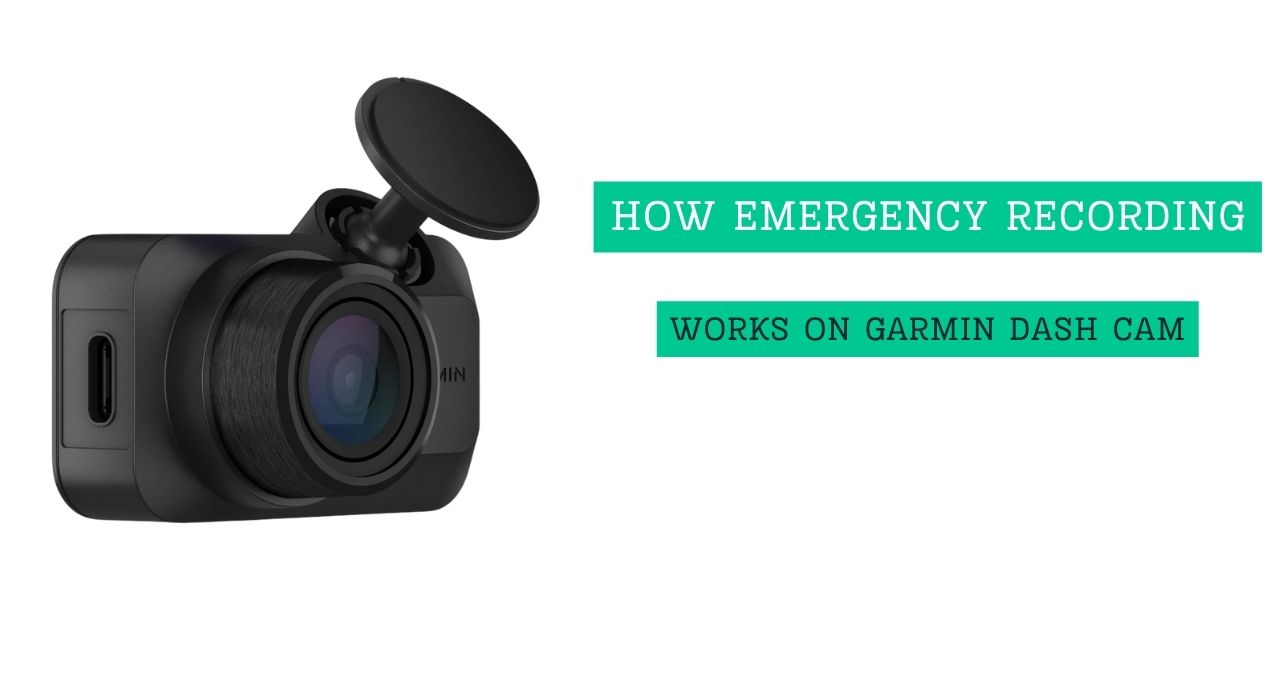
Hearing tires screech is a sound that makes your heart stop. I felt that panic recently when a car swerved right in front of me, but my device acted like a loyal witness and saved the clip instantly. Many drivers ask exactly how emergency recording works on Garmin dash cam to protect them from unfair claims. Let’s break down how this smart feature locks away your proof when you need it most.
What Is Emergency Recording on a Garmin Dash Cam?
Think of emergency recording as a digital vault. Regular driving footage is like a stream of water. It flows in and eventually flows out to make room for new water. This is called continuous loop recording. It overwrites old boring drives to save space.
Emergency recording is different. When trouble happens, the camera grabs that specific clip. It locks it down tight. This Garmin dash cam emergency video will not get deleted automatically. It stays safe until you decide to move it.
Garmin includes this for one big reason: peace of mind. Dash cam accident recording ensures you have proof even if you are too shaken up to press a button. It is your silent witness that never blinks.
How Emergency Recording Works on Garmin Dash Cam (Step-by-Step)
Understanding how this works takes the mystery out of the tech. It relies on a smart mix of hardware and software.
Built-In G-Sensor and Impact Detection
Inside your camera is a G-sensor. This is a tiny chip that feels movement. It knows when you are driving smooth. It also knows when things get rough.
The sensor looks for automatic incident detection triggers.
- Sudden braking: Slamming on the pedals.
- Collisions: Hitting another car or object.
- Sharp impacts: A bad pothole or a curb strike.
I once had my sensor trigger just from braking hard for a squirrel. The camera chirped. It thought I crashed. It shows how sensitive and ready the system is.
Automatic Video Locking Process
When the G-sensor feels a jolt, it acts fast. It tells the software to “Freeze!” The camera takes the video from a few seconds before the hit and a few seconds after.
It wraps this footage in digital armor. This is the dash cam emergency video lock. The system marks the file as “Protected.” This stops the loop recording from erasing it later. You do not have to touch a thing.
Where Emergency Videos Are Stored
Your camera is smart about organization. It does not mix important clips with your grocery runs.
- Separate Folder: These clips go into a folder often named “Events” or “Saved.”
- Retention: They stay there until you format the card or delete them.
- Space Management: A small SD card fills up fast. A larger card holds more saved events.
My Personal Experience Using Emergency Recording on a Garmin Dash Cam
I have driven with Garmin units for years. I trust them. Last winter, I saw how emergency recording works on Garmin dash cam firsthand.
I was at a red light. A driver behind me slid on ice. Bump. It wasn’t a huge crash, but it rocked the car. Instantly, my dash cam let out a specific tone. A red icon flashed on the screen.
I didn’t have to reach up. I didn’t have to panic about saving the file. The camera did it all.
Later, I checked the footage. It had the impact clearly visible. It also had the minute leading up to it. This clip helped me file my insurance claim in ten minutes flat. It took the “he said, she said” right out of the conversation.
How to Tell If Emergency Recording Was Triggered
You need to know when your camera captures an event. Garmin makes this clear with Garmin dash cam alerts.
- Audio Alert: You will hear a distinct beep or chime. It sounds different than the startup noise.
- Visual Icon: Look at the screen. You might see a “Saved” message or a lock icon.
- App Notification: If you use the Garmin Drive app, it may tell you a new Garmin Drive app incident video is ready.
How to Access and Save Emergency Recordings
Getting your video off the camera is easy. You have three main ways to do it.
On the Dash Cam Itself
This is good for a quick check.
- Stop your car safely.
- Tap the menu button on the device.
- Select “Gallery” or “Video Review.”
- Look for the “Saved” or “Event” folder.
- Play the clip right on the screen.
Using the Garmin Drive App
This is the wireless way. It is great for sharing clips fast.
- Open the app on your phone.
- Connect to the dash cam Wi-Fi.
- Go to the video list.
- Find the locked video.
- Download it directly to your phone’s camera roll.
Transferring Files to a Computer
This is best for saving files permanently.
- Take the SD card out of the camera.
- Put it into your computer.
- Open the drive folder.
- Look for a folder named “EVENT” or “RO” (Read Only).
- Drag the files to your desktop.
Common Questions and Misunderstandings About Emergency Recording
Does emergency recording overwrite old videos?
No. It protects them. However, if your “Saved” folder gets full, the oldest saved clip might get deleted to make room for a new crash video.
Can you manually trigger an emergency recording?
Yes. Most Garmin units have a button for this. Or, you can use voice commands. Just say, “OK Garmin, save video.”
Does it record audio?
Yes, usually. Audio is helpful. It records horns, screeching tires, or conversations after a crash. You can turn this off in settings if you want.
Does emergency recording work when parked?
Yes, but only if you have Parking Mode set up. You usually need a hardwire cable for this. It wakes the camera up if someone bumps your bumper.
Tips to Make Sure Emergency Recording Works Properly
You want your gear to work when it counts. Follow these tips.
- Secure Mounting: Make sure the mount is tight. A wobbly camera triggers false alerts.
- Adjust Sensitivity: Check your Garmin dash cam settings. If the G-sensor is too sensitive, every speed bump will lock a video. Set it to “Medium” or “Low” for smoother rides.
- Check Your Card: Use the best SD card for Garmin dash cam usage. Look for “High Endurance” cards. They handle constant writing better.
- Update Often: Keep your software fresh. Updates fix bugs and improve detection.
Emergency Recording vs Manual Save – What’s the Difference?
Here is a quick breakdown of when to use which method.
| Feature | Trigger | Best Use Case |
| Emergency Recording | Automatic (G-Sensor) | Crashes, bumps, hard impacts. |
| Manual Save | Button or Voice Command | Road rage, bad drivers, scenic views. |
I use manual save when I see something crazy on the road that doesn’t hit me. I let the automatic system handle the actual accidents.
FAQs – How Emergency Recording Works on Garmin Dash Cam
How does Garmin dash cam detect an accident?
It uses a G-sensor. This chip detects sudden changes in speed or direction, like a crash or hard stop.
Does emergency recording work automatically?
Yes. As long as the camera is on, the sensor is watching. You do not need to press anything during a crash.
How long does Garmin dash cam save emergency footage?
It usually saves 1 to 3 minutes total. This includes time before and after the trigger. It is enough to show the whole context.
Can emergency recordings be deleted?
Yes. You can delete them manually. Also, if the protected folder fills up completely, the oldest event might be erased.
Do all Garmin dash cams have emergency recording?
Most modern ones do. It is a standard safety feature on models like the Mini 2, Tandem, and X-series.
Final Thoughts – Is Emergency Recording on Garmin Dash Cam Reliable?
After using it for years, I can say yes. How emergency recording works on Garmin dash cam is simple and effective. It removes the panic from a bad situation. You focus on safety. The camera focuses on the evidence.
If you are a new user, check your Garmin dash cam settings today. Adjust the sensitivity. Test the voice commands. Knowing your camera is ready gives you real confidence on the road. Drive safe, and let your Garmin watch your back.

Jake Elston
I am Jake Elston, the founder of CarDetailFlow. I have eight years in car work. I hold a post-grad cert in Automotive Materials and Design Engineering from the University of Michigan–Dearborn. My goal is to share true, simple car help with all drivers.