
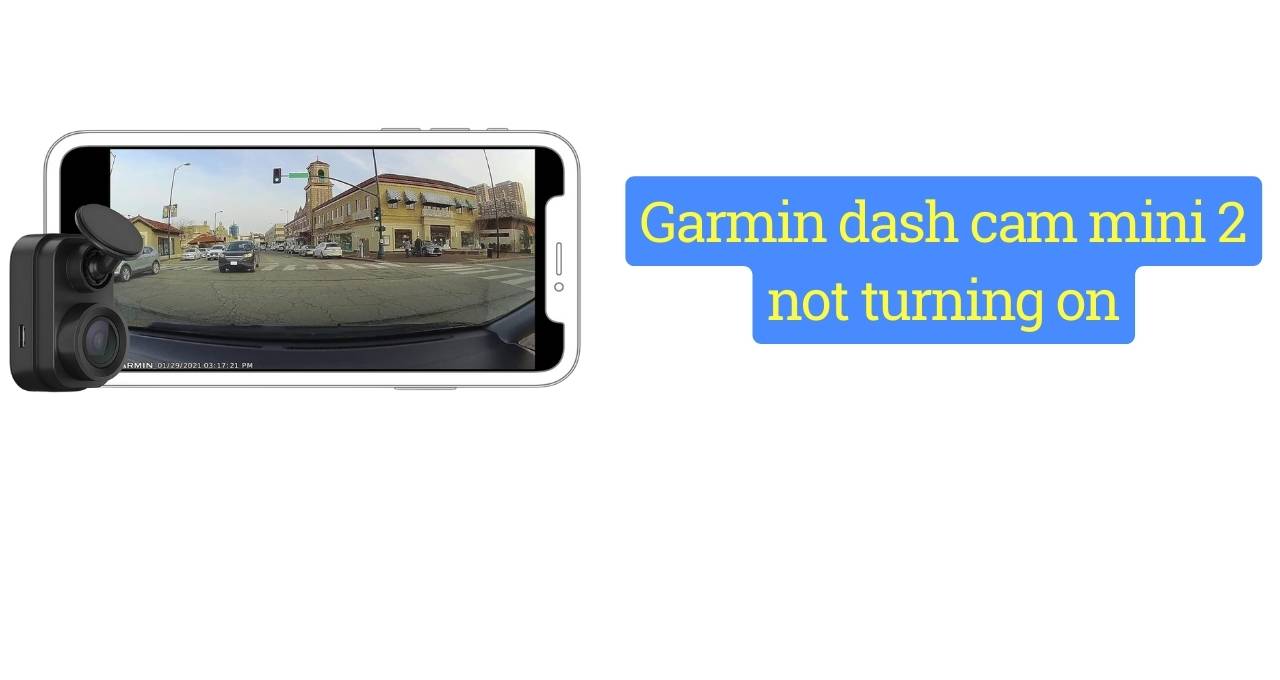
Few things are more annoying than a Garmin Dash Cam Mini 2 not turning on when you need it most. This happened to me after parking overnight, and it felt like the camera was asleep and refusing to wake up. A friend had the same issue and said it was “like a flashlight with dead batteries,” which fit perfectly. From years of working with dash cams and car power setups, I’ve learned this problem is common and usually tied to power or setup quirks. Let me show you why it happens, what signs to watch for, and how to fix it before you give up on it.

Quick Checks Before You Panic (2-Minute Test)
Before you assume the worst, take a breath. I’ve fixed more “dead” dash cams in two minutes than I can count. Think of this like checking if a lamp is plugged in before buying a new one.
Check the Power Source (Most Common Cause)
Start with the power source. A bad USB port or weak cigarette lighter can quietly fail without warning. I once chased this issue for an hour, only to learn my car’s outlet was half-dead after winter.
If you use a hardwire kit, voltage cutoffs are often the villain. When the car sits overnight, the kit may stop power to protect the battery. The dash cam then looks dead, even though it’s fine.
Try a Different USB Cable
Garmin dash cams are picky, like a phone that only charges with one cable. Some cables look good but fail inside. A reader once told me, “I swapped the cable and it came back to life like magic.”
Make sure it’s a charging cable, not just a data cable. Data-only cables can fool you. They fit, but they don’t feed enough power.
Test It Outside the Car
Take the camera out of the car. Plug it into a wall adapter or a power bank at home. This test is like giving the cam fresh air to see if it wakes up.
If it works, you should see the LED light within a few seconds. No light usually means no power. A steady light means the camera is alive.
Garmin Dash Cam Mini 2 Power Issues I See Most Often
After years of testing dash cams, patterns stand out. These issues show up again and again, like bad habits that never die.
Faulty USB Cable (Even If It Looks Fine)
Inside the cable, tiny wires can snap. Heat makes this worse, especially on a hot windshield. The cable looks perfect, but it’s broken inside.
Length also matters. Long cables lose power over distance. Shorter cables often fix the problem fast.
Car Turns Off Power Too Quickly
Many modern cars cut power the second you turn the key off. The dash cam may not get enough time to boot. It’s like pulling the plug on a computer mid-start.
I saw this in a new SUV last summer. The camera worked only while driving, then died at stops.
Hardwire Kit Not Supplying Enough Voltage
Parking mode confuses many people. If the voltage drops, the kit shuts off power to save your car battery. The dash cam then looks dead.
This is normal behavior, not a failure. Adjusting the cutoff setting often brings it back.
How to Reset Garmin Dash Cam Mini 2 (Step-by-Step)
If power checks don’t help, a reset is the next move. Think of it as a deep breath for the camera.
Soft Reset (First Thing to Try)
Unplug the dash cam fully. Wait 30 to 60 seconds. This lets the internal parts settle.
Plug it back in using a known good power source. In many cases, this alone fixes the issue.
Factory Reset (If It’s Completely Dead)
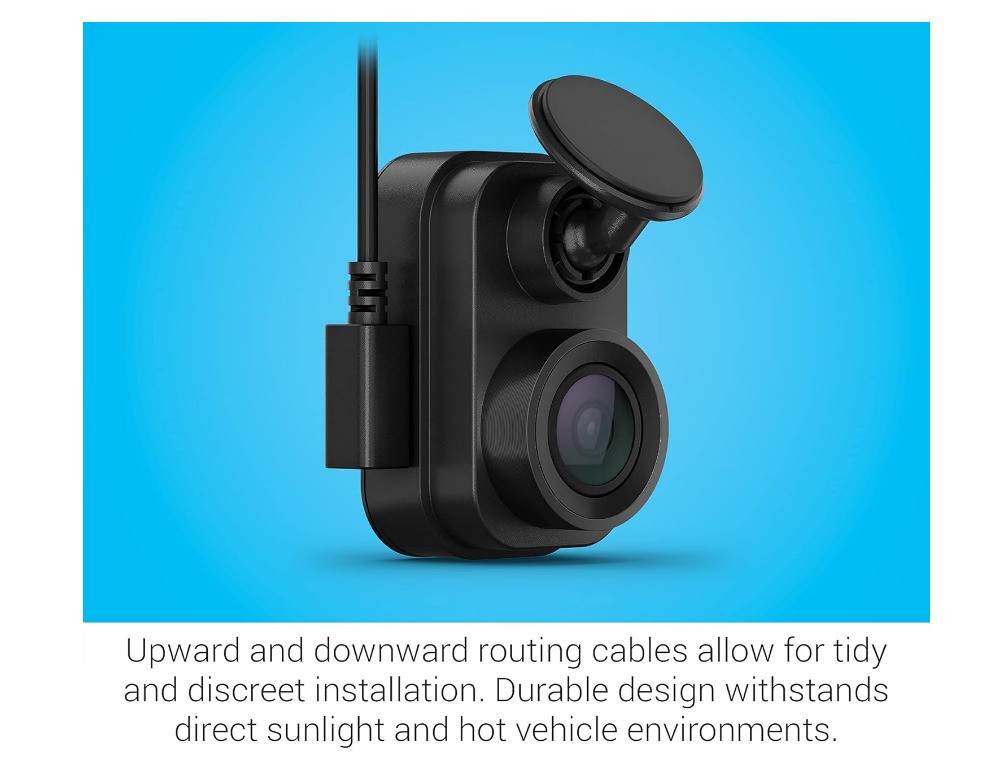
The reset button is small and easy to miss. Hold it down while powering the camera on. Timing matters here.
When mine reset, it took about 20 seconds before the light came back. That moment felt like a heartbeat returning.
When the Garmin Mini 2 Still Won’t Turn On
If nothing works, it’s time to think deeper. This is where experience helps.
Firmware Corruption Symptoms
Problems often start after an update. The camera may freeze or fail to boot. SD card errors can trigger this too.
Removing the card and retrying power can reveal the issue fast.
Overheating Damage (Very Common in Summer)
Windshield heat is brutal. I’ve measured temps that could fry an egg. Over time, this stresses the internal battery.
If the camera feels warm but stays dark, heat damage is likely.
Defective Unit (Yes, It Happens)
Some units fail early. It’s rare, but real. Signs include no light on any power source.
Garmin support is usually helpful if the unit is under warranty.
SD Card Problems That Can Stop Startup
This issue hides in plain sight. Many people never suspect the SD card.
Unsupported or Corrupt SD Card
Using the wrong size or speed can stop startup. Garmin dash cams prefer high-quality cards. Cheap cards fail often.
Formatting the card in the camera helps more than you’d think.
Testing Without an SD Card
Remove the card and power the camera on. It should still light up. If it does, the card is the problem.
This test has saved many readers from buying a new dash cam for no reason.
How I Prevented This Problem From Happening Again
After fixing my Garmin Dash Cam Mini 2 not turning on, I changed a few habits. I learned the hard way that dash cams are like houseplants. Treat them right, and they last. Ignore them, and they fade fast.
I switched to a short, high-quality USB cable. The change felt instant, like swapping a frayed phone charger for a new one. Since then, random power drops stopped completely.
I also added a constant-power adapter. This kept the camera steady even after parking overnight. A reader once told me, “That one upgrade saved my sanity,” and I agree.
Heat was my next enemy. I now pull the camera down on hot days. It’s a small move, but it protects the inside parts from cooking.
I format the SD card every few weeks. Think of it like clearing clutter from your phone. It keeps the system clean and smooth.
After every install, I do a quick power-up test. If it lights up right away, I know I’m good. That habit alone has saved me from surprise failures.
Frequently Asked Questions (FAQ)
Why is my Garmin Dash Cam Mini 2 not turning on at all?
In most cases, it’s a power issue. A bad cable, weak port, or voltage cutoff is usually the cause. Start with power before assuming it’s broken.
Does the Garmin Mini 2 have a battery?
Yes, but it’s very small. It’s made to handle short power gaps, not long use. This is why steady power matters so much.
What does it mean if there’s no LED light?
No light almost always means no power. Think of it like a TV with no standby light. Check the cable and power source first.
Can a bad SD card stop the dash cam from turning on?
Yes, and this surprises many people. A corrupt card can block startup. Removing the card is a quick test.
How do I know if my Garmin Mini 2 is dead?
If it shows no light on any power source, it may be dead. Test it at home with a wall adapter to be sure.
Will Garmin replace a dash cam that won’t power on?
If it’s under warranty, often yes. Garmin support has helped many users, including one reader who said the process was “smooth and fair.”
Is It Worth Replacing or Repairing the Garmin Mini 2?
Most power fixes cost almost nothing. A new cable or adapter is cheap and fast. Repair usually isn’t worth it for small electronics like this.
If the camera is old or heat-damaged, replacement makes more sense. Newer models handle power better and run cooler. I only suggest upgrading when fixes fail.
Final Verdict: What Actually Fixes a Garmin Dash Cam Mini 2 That Won’t Turn On
In real life, the fix is simple most of the time. A better power cable and a stable power source solve the issue. I’ve seen this work again and again.
Test one thing at a time. Don’t rush. Treat it like solving a puzzle, not fighting a fire.
From my experience, patience beats panic. Follow these steps, and your Garmin Mini 2 usually comes back to life.

Jake Elston
I am Jake Elston, the founder of CarDetailFlow. I have eight years in car work. I hold a post-grad cert in Automotive Materials and Design Engineering from the University of Michigan–Dearborn. My goal is to share true, simple car help with all drivers.