
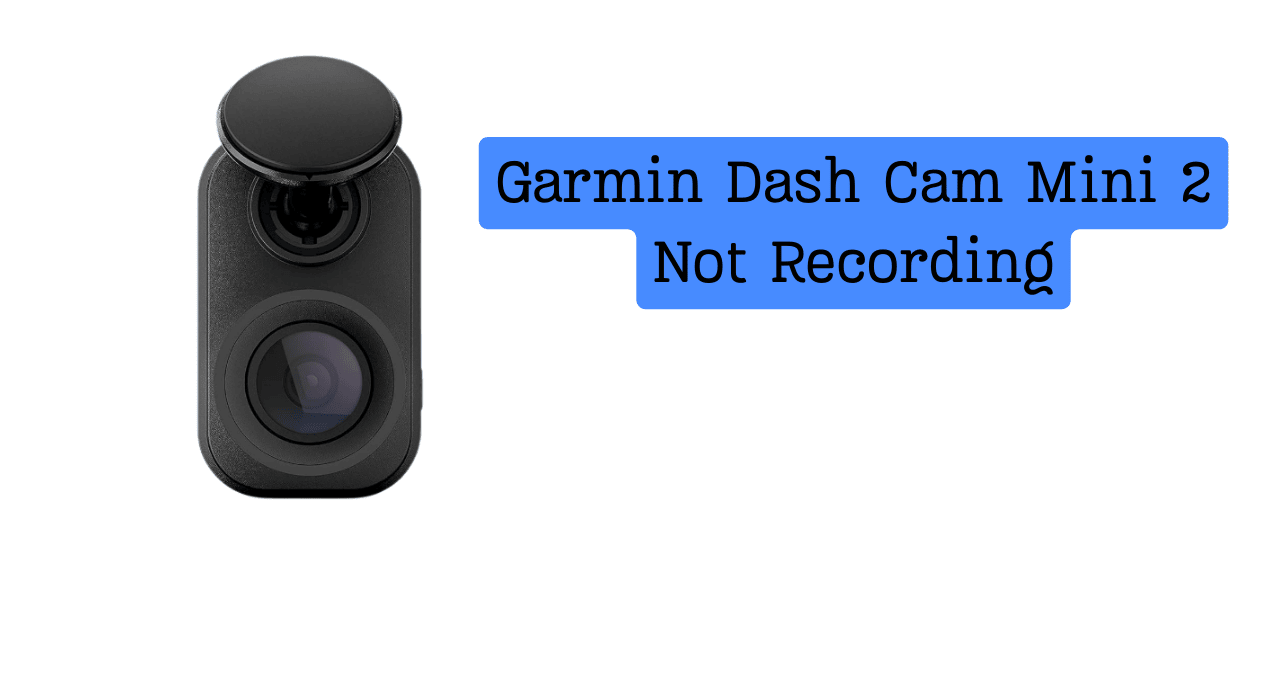
If your Garmin Dash Cam Mini 2 not recording, you’re not alone—I’ve been there, and it feels awful. I once checked my camera after a close call, like reaching for a seatbelt that isn’t there, and found no video at all. Most times, this happens because of power issues, SD card errors, or a simple setting that got turned off. In this guide, I’ll share quick fixes and real tips that helped me get my Garmin Mini 2 recording again—before you waste money on a replacement.
Why Is My Garmin Dash Cam Mini 2 Not Recording?
If your Garmin Dash Cam Mini 2 not recording, the reason is usually simple. Think of it like a lamp that won’t turn on—it’s almost always the plug, not the bulb. From my own use, most problems come down to power, the SD card, or a quiet setting change you didn’t notice. Once you know where to look, fixes are often fast.
The Most Common Reasons (Quick Overview)
- Power supply interruption: The camera turns on, then stops recording.
- Unsupported or faulty microSD card: Cheap cards fail under heat and stress.
- Storage full or loop recording off: The camera has nowhere to save files.
- Firmware bugs or outdated software: Small glitches can break recording.
- Overheating or extreme temperatures: Summer heat can pause recording.
- App sync or Wi-Fi issues: Footage exists but doesn’t show in the app.
I’ve seen this with my own Mini 2. It felt like checking a mailbox every day and finding it empty—until I realized the mail was there, just stuck.

Check This First (60-Second Quick Fixes)
Before digging deep, start here. These checks fix a surprising number of cases where a dash cam turns on but not recording.
- Make sure the camera powers on when the car starts.
- Look for the blinking LED that shows recording.
- Listen for the startup chime, if you use sound.
- Push the SD card in until it clicks.
- Restart the dash cam once.
When mine failed, I started with settings. That did nothing. The real fix? Reseating the SD card. It was like pushing a loose phone charger back in—simple, but effective.
Power Issues That Stop Recording (Most Common Cause)
Power problems are the top reason a Garmin dash cam not recording video. Dash cams need steady power, not a weak trickle.
Weak USB Port or Bad Power Cable
Many car USB ports are made for phones, not dash cams. They look fine but don’t deliver steady power. I learned this the hard way on a long drive when my Mini 2 kept stopping.
- OEM or high-quality cables work best.
- Cheap cables lose power under heat.
- Garmin’s power adapter gives more stable output.
If power drops, recording stops—even if the camera stays on.
Ignition-Controlled Power Problems
Some ports shut off when the engine stops. That’s normal, but it can confuse new users.
- Driving mode records only when the car is on.
- Parking mode needs constant power.
- Without it, recording ends when the engine stops.
It’s like a TV plugged into a switch. Flip the switch off, and the show ends.
SD Card Problems That Prevent Recording
If power is solid, look at the SD card. Most Garmin Mini 2 SD card error reports trace back here.
Using the Wrong SD Card Type
Dash cams write video nonstop. Many cards can’t keep up.
- Use Class 10, U3, high-endurance cards.
- Avoid no-name or old cards.
- Cheap cards wear out fast in heat.
I once used a spare card from a drawer. It failed in a week.
SD Card Not Formatted Correctly
Even good cards need the right format.
- Format the card inside the Garmin Mini 2.
- Reformat every few months.
- Errors often mean corruption.
If files won’t save, the card may already be damaged.
Storage Full or Locked Files
Loop recording should delete old clips. But locked files stay.
- Impact clips are protected.
- Too many locked files fill storage.
- Full storage means no new video.
It’s like a closet that never gets cleaned. Eventually, nothing fits.
Settings That Can Stop Recording Without Warning
Sometimes the Garmin Dash Cam Mini 2 not recording has nothing to do with hardware. It’s more like leaving your phone on silent and missing calls all day. The camera is fine, but one small setting quietly stops it from saving video. I’ve made this mistake myself, and it’s easy to miss.
Loop Recording Turned Off
Loop recording lets the camera overwrite old clips. When it’s off, recording stops once storage fills up. I once drove for days thinking everything was fine, only to find the camera had stopped like a full notebook with no blank pages left.
Recording Resolution Conflicts
Higher resolution means larger files. If your SD card can’t keep up, recording may fail. It’s like trying to pour thick syrup through a straw—something will clog.
Accident Detection Locking Files
The G-sensor locks clips during bumps or hard stops. If sensitivity is too high, it locks too many files. Those locked clips eat space fast and can stop new recording.
Garmin Dash Cam Mini 2 Firmware & Software Issues
Software problems can feel invisible, but they matter. Think of firmware like a brain update—small changes fix big problems.
Outdated Firmware Bugs
Old firmware can cause the Garmin dash cam not recording video at all. Garmin releases updates to fix bugs and improve stability. I had a recording issue vanish right after one update, like flipping a stuck switch back on.
Garmin Drive App Sync Issues
Sometimes the camera records, but the app doesn’t show it. That feels scary, but the files are often still on the SD card. Check the card on a computer to confirm the footage exists.
Overheating & Environmental Factors (Often Overlooked)
Heat is a silent enemy for dash cams. In summer, your car can feel like an oven.
- Extreme heat can pause recording.
- Garmin devices have safe temp limits.
- Direct sun makes things worse.
I moved my camera slightly behind the mirror. It stayed cooler, and recording became more stable.
How I Fixed My Garmin Dash Cam Mini 2 Not Recording
When my Mini 2 failed, I felt annoyed and worried. The camera turned on, but no files saved. I tried settings, power cables, and the app—nothing worked.
The fix was simple. I replaced the SD card with a high-endurance one and updated the firmware. Since then, it’s recorded every drive without missing a beat.
When to Reset or Replace the Dash Cam
Sometimes you reach the last step. That’s okay.
How to Factory Reset Garmin Dash Cam Mini 2
A reset clears bugs and bad settings. It’s like rebooting a frozen phone. Always back up footage first.
Signs the Hardware May Be Faulty
If it won’t power on or record after all fixes, hardware may be failing. At that point, contact Garmin support. In the U.S., warranty help is usually smooth and fast.
Preventing Recording Problems in the Future
A little care goes a long way.
- Use high-endurance SD cards.
- Check footage once a month.
- Use a stable power source.
- Keep firmware up to date.
These habits turn a fragile setup into a reliable one.
FAQs – Garmin Dash Cam Mini 2 Not Recording
Why does my Garmin dash cam turn on but not record?
Power dips, full storage, or SD card errors are common causes.
How do I know if my Garmin Mini 2 is recording?
Look for the blinking LED and check recent files on the SD card.
Does the Garmin Dash Cam Mini 2 record when the car is off?
Only with parking mode and constant power.
What SD card works best with Garmin Dash Cam Mini 2?
Use Class 10, U3, high-endurance cards from known brands.
Can overheating stop dash cam recording?
Yes. High heat can pause or stop recording.
Final Thoughts – Is the Garmin Dash Cam Mini 2 Reliable?
If you want a small, simple dash cam, this one fits well. It’s great for daily drives and city traffic. If you need parking mode or long off-car recording, you may want a higher model.
From my experience, most problems come from setup, not the camera. Before replacing it, double-check power, settings, and the SD card—you may be closer to a fix than you think.

Jake Elston
I am Jake Elston, the founder of CarDetailFlow. I have eight years in car work. I hold a post-grad cert in Automotive Materials and Design Engineering from the University of Michigan–Dearborn. My goal is to share true, simple car help with all drivers.